Extended Offer - Celebrating 20 years!

Dec 01 - Dec 31

New customers: 20% off – use code CELEBRATE2025
MEGA customers: 6 hours free support – use code MEGA2025
Existing customers: Get 50% off your upgrade – contact Louise

Extended Offer - Celebrating 20 years!

Dec 01 - Dec 31

View Categories

IP Access Management

2 min read

Allow or Deny Connections Based on IP Address or Domain #

This feature allows you to control connections based on IP address or domain. It can be configured by logging in to the Admin GUI with an admin account and configure it either in:

Main Menu: Go to “Details” → “Security” → “Connection Control”, or #
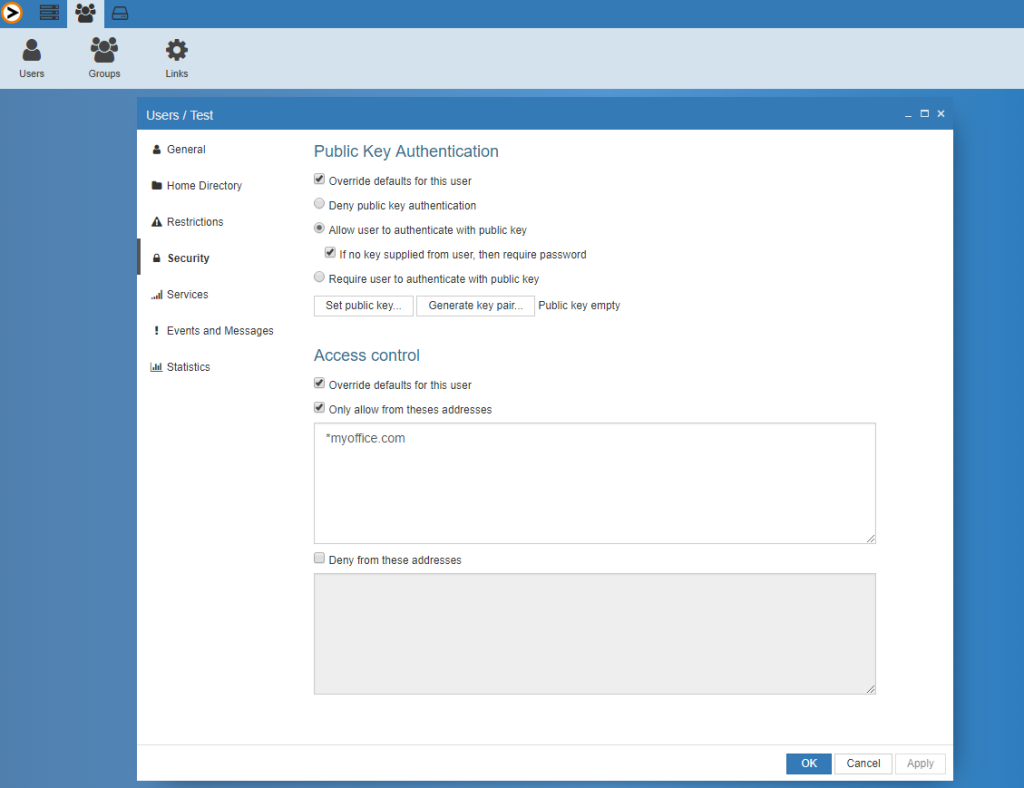
User/Group Settings: You can also override the defaults at the user/group level by going to “Security” → “Access Control”. #

If set in the main menu, the configuration will apply when accessing the server.

If set at the user/group level, it will apply when logging in.

You have the options to: #

• Always allow connections from specified addresses.
• Only allow connections from specified addresses.
• Deny connections from specified addresses.

An “Always allow” setting will, for example, override an anti-hammering ban.
You can specify IP addresses using wildcards (e.g., * or ?), ranges, or domains. Both IPv4 and IPv6 are supported.

Examples #

Examples done in IPv4

If the following are entered in one of the fields Always allow from, Only allow from or Deny from

• 10.10.0.0/24
Allows/denies traffic from the network 10.10.0.0, including any connection from addresses 10.10.0.1 to 10.10.0.254.


• 10.10.0.1-254
Allows/denies traffic from the range 10.10.0.1 to 10.10.0.254.


• 10.10.0.*
Allows/denies traffic from any address in the 10.10.0.* range.


• 10.*.0.1-254
Allows/denies traffic from the range 10.0.0.1 to 10.255.0.254.

• 10.*.0.1-254
Allows/denies any network in the range from 10.0.0.0 to 10.254.0.0.


• 10.10.0.2?? (using a single-character wildcard ?)
Allows/denies any address between 10.10.0.200 to 10.10.0.254.

Domain-Based Allow/Deny #

You can also use domain names to allow or deny connections from any address that resolves to a specific domain.

Examples #

• Local-computer has the IP address 192.168.10.45. A reverse lookup on this IP resolves to local-computer.providecompany.com.

• Remote-computer has the IP address 192.168.11.55. A reverse lookup resolves to remote-computer.notprovidecompany.com.
If you configure an “Only Allow” rule for the domain *.providecompany.com, then:

• Local-computer will be allowed to connect, as its IP resolves to the allowed domain (local-computer.providecompany.com).

• Remote-computer will not be able to connect, as its IP does not resolve to the allowed domain.
If the rule is configured as *providecompany.com instead, both Local-computer and Remote-computer would be able to connect, as both IP addresses resolve to a domain that matches the pattern.

maxi_provideserver

Choose your version of ProVide Server to download

For the ultimate experience of ProVide’s features and functions,
we recommend choosing the MAXI License.

Follow the 3 easy steps below to install ProVide Server
  1. Download the version you need using the buttons below.
  2. Get a free MAXI trial license by clickingk the “Get Maxi Trial License” button and enter your email. The license key will be sent to your email.
  3. Activate the license key by following this simple step-by-step-guide.

Extended offer
We're celebrating 20 years! 🎉

Dec 01 - Dec 31

New customers: 20% off – use code CELEBRATE2025

MEGA customers: 6 hours free support – use code MEGA2025

Existing customers: Get 50% off your upgrade – contact Louise

Your Cart

Header test Qty Price
display quantity price
Product Name Qty Price

🎉 BLACK FRIDAY DEALS! 🎉 Nov 18 - Nov 30

New customers: 20% off – use code BLACKFRIDAY2025

MEGA customers: 6 hours free support – use code MEGA2025

Existing customers: Get 50% off your upgrade – contact Louise

Thank you for showing interest in trying ProVide Server

Follow the 3 easy steps below to install ProVide Server

  1. Download the version you prefer 32-bit or 64-bit
  2. Activate the license key by clicking on the ‘Request trial’ button below and enter your email. The key will then be sent to that address.
  3. To enter the license key follow this guide: free-trial

Subtotal: Total

Total (inc. VAT): Total

Tax: Total

You save: Total

Free Trial

Get
ProVide Software